Lyra Sample Project
After Games that set up the match later, a Lyra match survives a host migration: the map, the pawns and the players come back. The match itself still starts over: teams are picked again, kills, deaths and the team score are back at 0, and the warmup and the timer start again.
Lyra keeps all of that in C++ properties without SaveGame, so the plugin does not save it. In this tutorial you copy it into SaveGame variables of a small component, and put it back on the new host. Everything except one line is Blueprint.
You need:
- Wait For Game Ready set up in Lyra.
bUseBeacons=falsefor Lyra's CommonSessionSubsystem, so players can join the new host. See Example: Lyra.- Restore Into Game Pawn on, so returning players keep the pawn Lyra spawns for them.
The Lyra setup video shows how to set up the Lyra sample project.
What gets saved
| What | Where Lyra keeps it | Read with | Put back with |
|---|---|---|---|
| A player's team | Lyra Player State | Get Team Id | Change Team For Actor |
| Kills, deaths, assists | Lyra Player State, stat tags | Get Stat Tag Stack Count | Add Stat Tag Stack |
| Team score | Team info actor, team tags | Get Team Tag Stack Count | Add Team Tag Stack |
| Match phase and timer | B_TeamDeathMatchScoring | Is Phase Active, CountDownTime | Start Phase, Set Timer by Event |
The component writes these into maps on the host before every snapshot. The maps are SaveGame, so they travel with the GameState to the new host.
Step 1: one line of C++
Change Team For Actor is not available in Blueprint. In Source/LyraGame/Teams/LyraTeamSubsystem.h, add a
UFUNCTION line above it and build the project:
UFUNCTION(BlueprintCallable, BlueprintAuthorityOnly, Category=Teams)
UE_API bool ChangeTeamForActor(AActor* ActorToChange, int32 NewTeamId);
Step 2: the component
- Create a Blueprint class with parent Game State Component and call it
B_MatchMigration. - In Class Settings → Interfaces, add Host Migration Events.
- Add these variables:
| Variable | Type | SaveGame | Default |
|---|---|---|---|
SavedTeams | Map: String → Integer | yes | |
SavedStats | Map: String → Integer | yes | |
SavedTeamScores | Map: Integer → Integer | yes | |
StatTags | Array of Gameplay Tag | no | ShooterGame.Score.Eliminations, ShooterGame.Score.Deaths, ShooterGame.Score.Assists |
TeamScoreTag | Gameplay Tag | no | ShooterGame.Score.Eliminations |
SaveGame is under Advanced in the variable's details. Only the three maps need it.
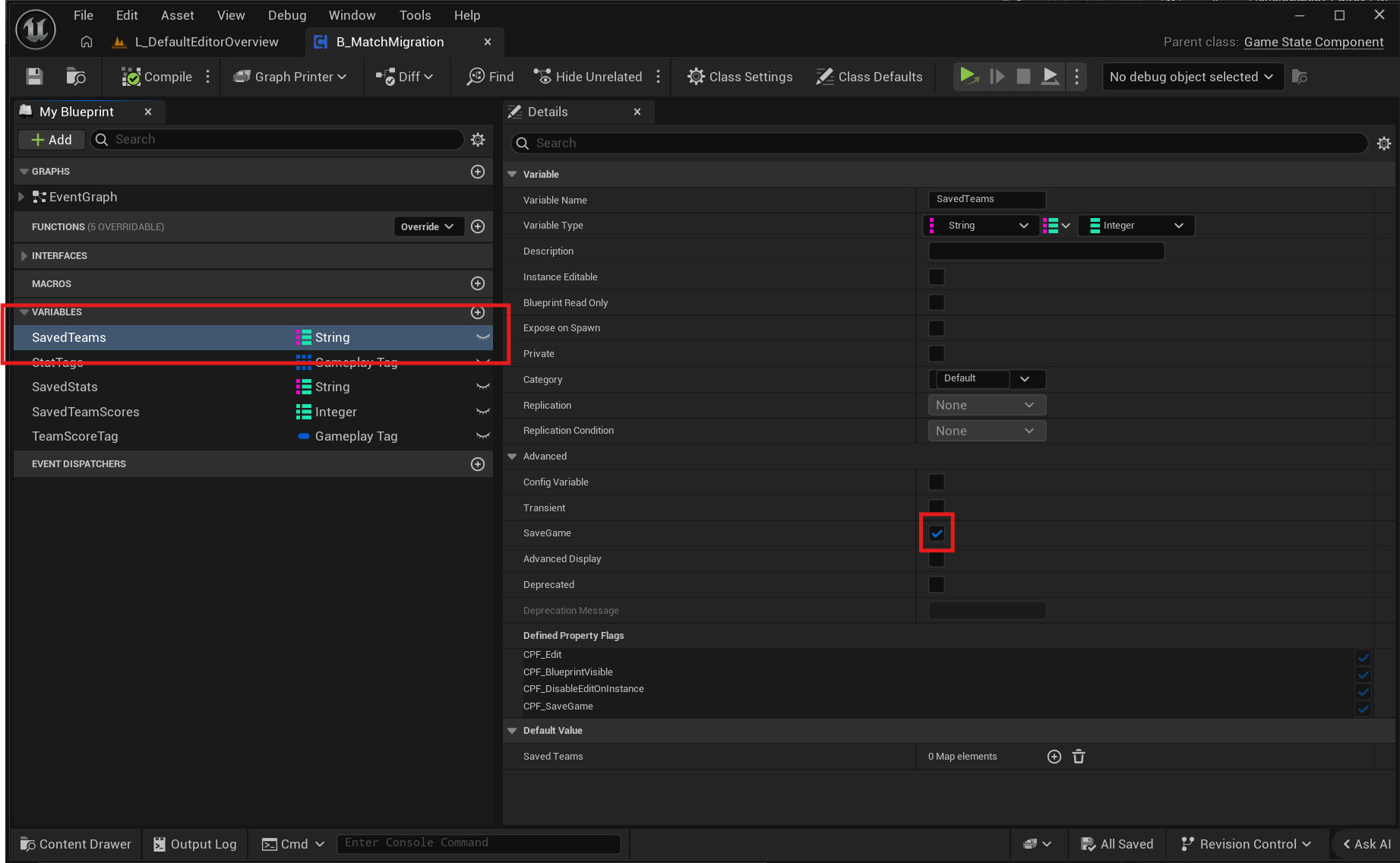
SavedTeams uses the player's id as key. SavedStats uses the player's id plus the tag name, for example
hulken-1234ShooterGame.Score.Deaths, so all stats of all players fit in one map.
- Open the ShooterCore Game Feature Data and find the Add Components action under Actions. Add an
element to its Component List: Actor Class
LyraGameState, Component ClassB_MatchMigration, Client Component off, Server Component on.
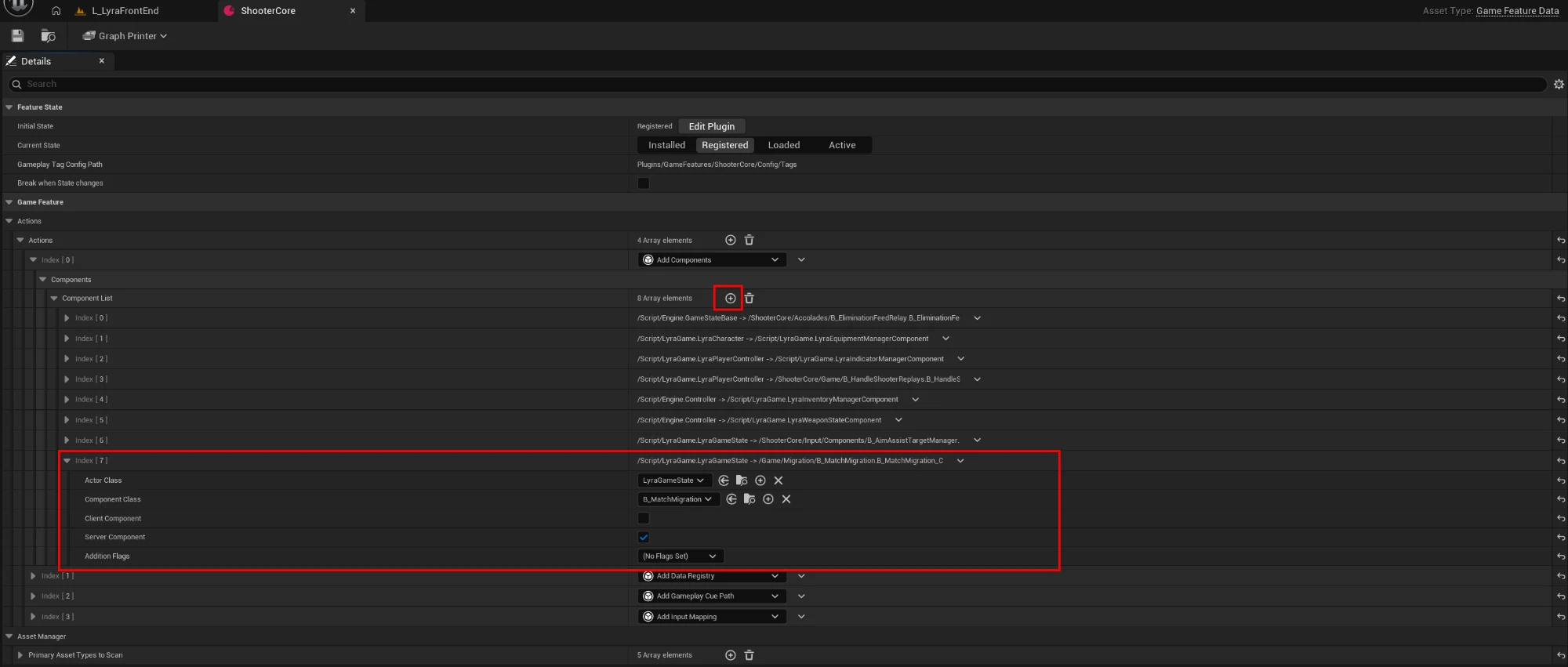
Every ShooterCore experience now gets the component, Elimination as well as Control Point.
Step 3: save on the host
On Host Migration Save runs on the host right before each snapshot.
- For every player in the GameState's Player Array:
- Write the team into
SavedTeams. - For every tag in
StatTags, write the count intoSavedStats.
- Write the team into
- Then, for every team, write the team score into
SavedTeamScores.
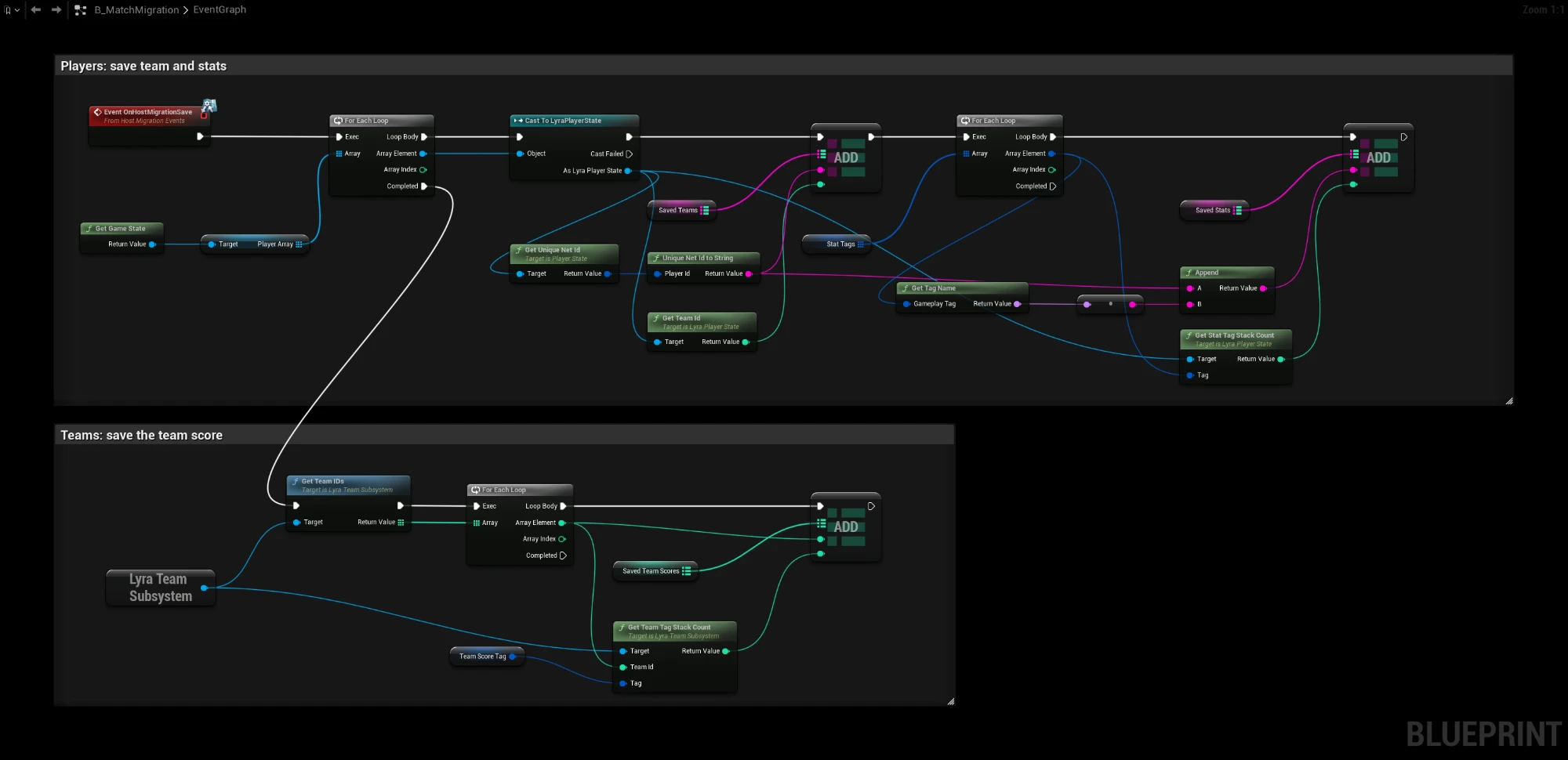
Bots have no player id, so they all write to the same empty entry. That does no harm: only players come back through On Player Restored, so bots start with new stats on the new host.
The maps are never cleared. A player who left keeps their entry, so they get their stats back when they join again, even after another migration.
Step 4: put the team score back
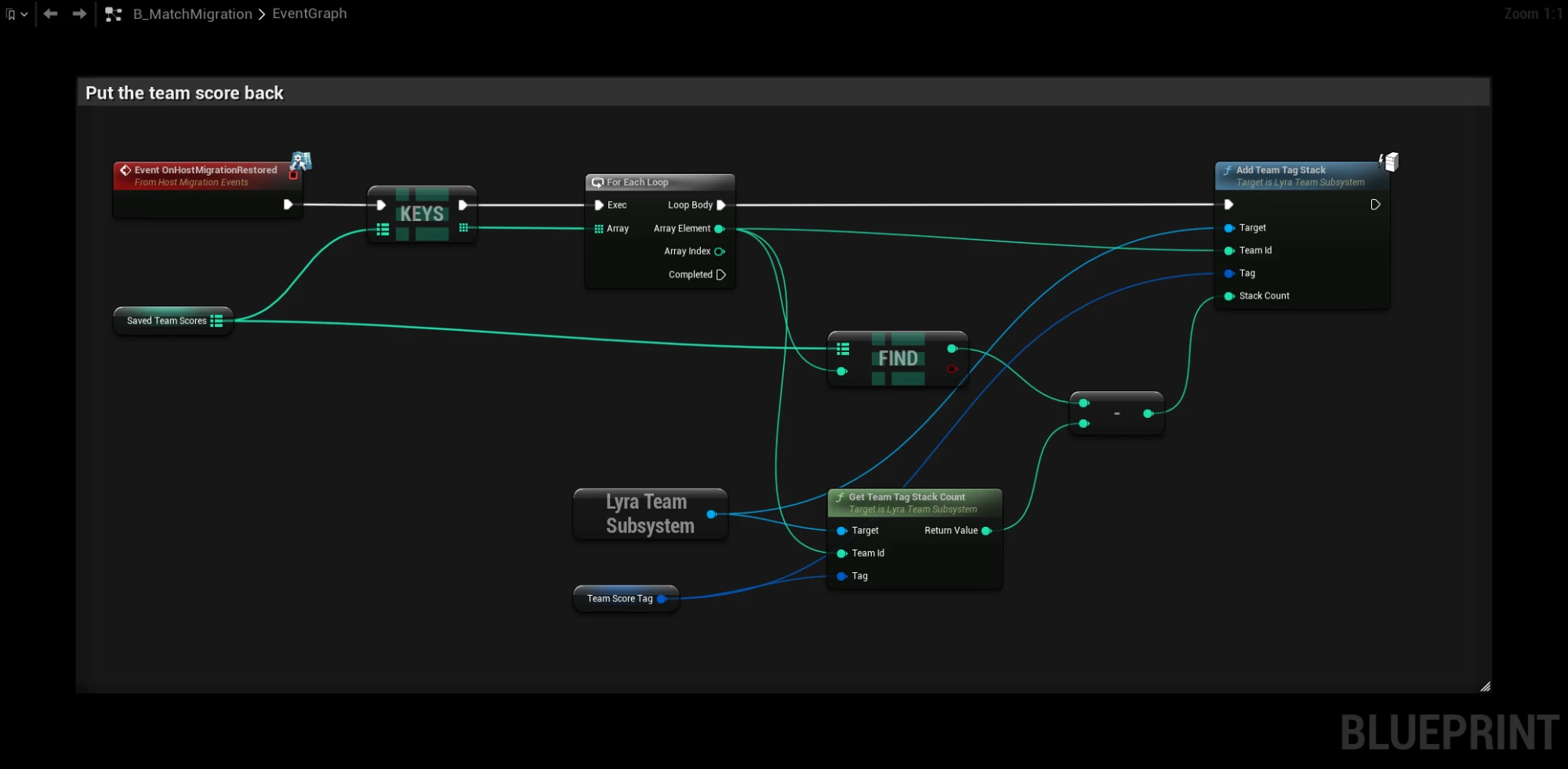
On Host Migration Restored runs on the new host after the GameState and its components are restored. Lyra has already created the teams at this point.
- For every team in
SavedTeamScores, add the saved score minus the current score.
Adding the difference instead of the saved value means it does not matter whether the team already had points.
Step 5: put each player back
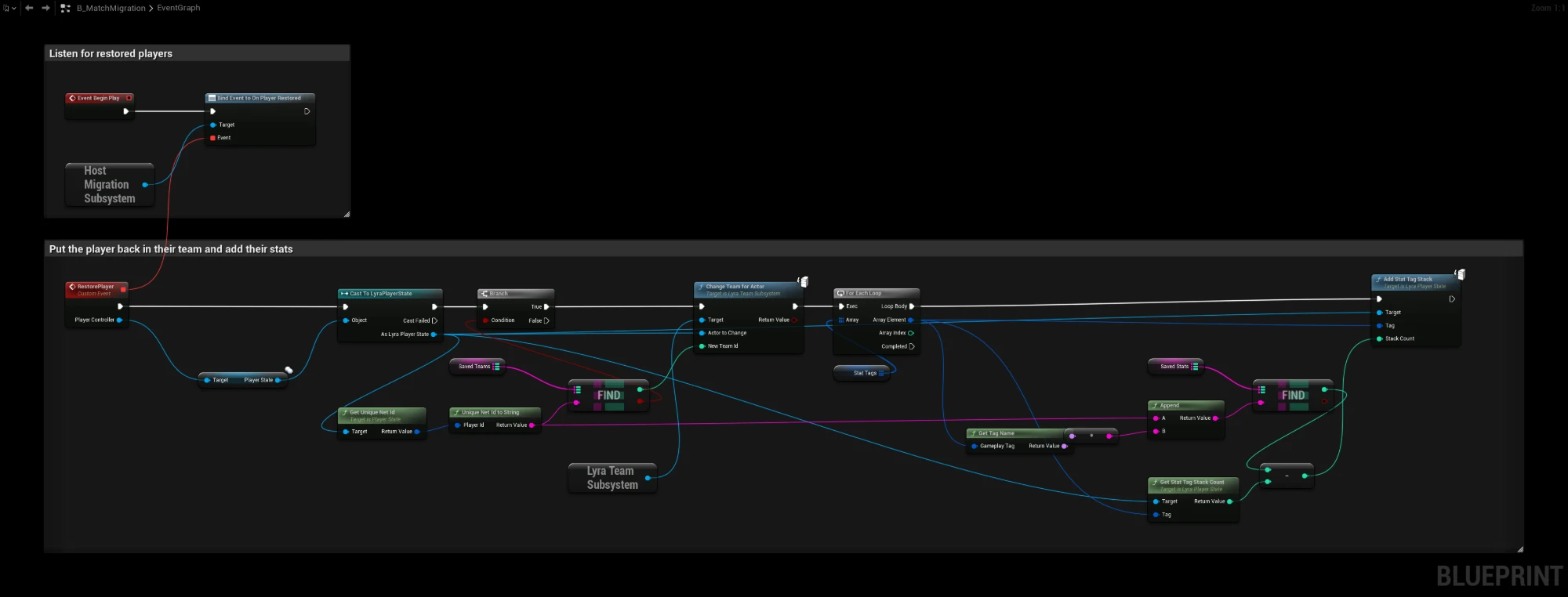
Players come back one by one: the new host first, then the others as they reconnect. On Player Restored on the Host Migration subsystem fires for each of them.
- On BeginPlay, bind On Player Restored to a
RestorePlayerevent. - In
RestorePlayer:- Find the player's id in
SavedTeams. If it is there, Change Team For Actor puts them back in their team. This also overrides the team Lyra picked for them when they logged in. - For every tag in
StatTags, add the saved count minus the current count.
- Find the player's id in
Step 6: keep the phase and the timer
The match timer is in B_TeamDeathMatchScoring. On BeginPlay it starts Phase_Warmup. When the warmup ends,
GameStarted sets TargetScore and CountDownTime, and starts a looping Set Timer by Event that counts down
every second. Without changes, the new host runs all of this again: a new warmup and a full timer.
- Open
B_TeamDeathMatchScoringand add the Host Migration Events interface in Class Settings. - Add these variables, and mark
TargetScoreas SaveGame too:
| Variable | Type | SaveGame |
|---|---|---|
WasPlaying | Boolean | yes |
SavedCountDownTime | Same type as CountDownTime | yes |
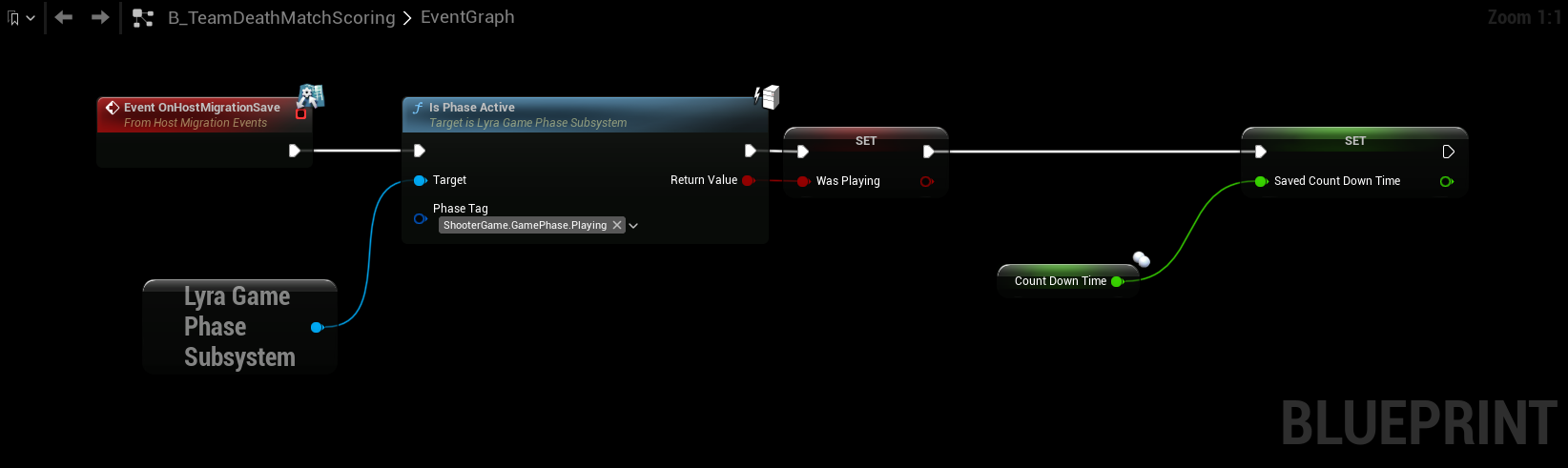
- On Host Migration Save: set
WasPlayingto Is Phase Active with the tagShooterGame.GamePhase.Playing, and setSavedCountDownTimetoCountDownTime.
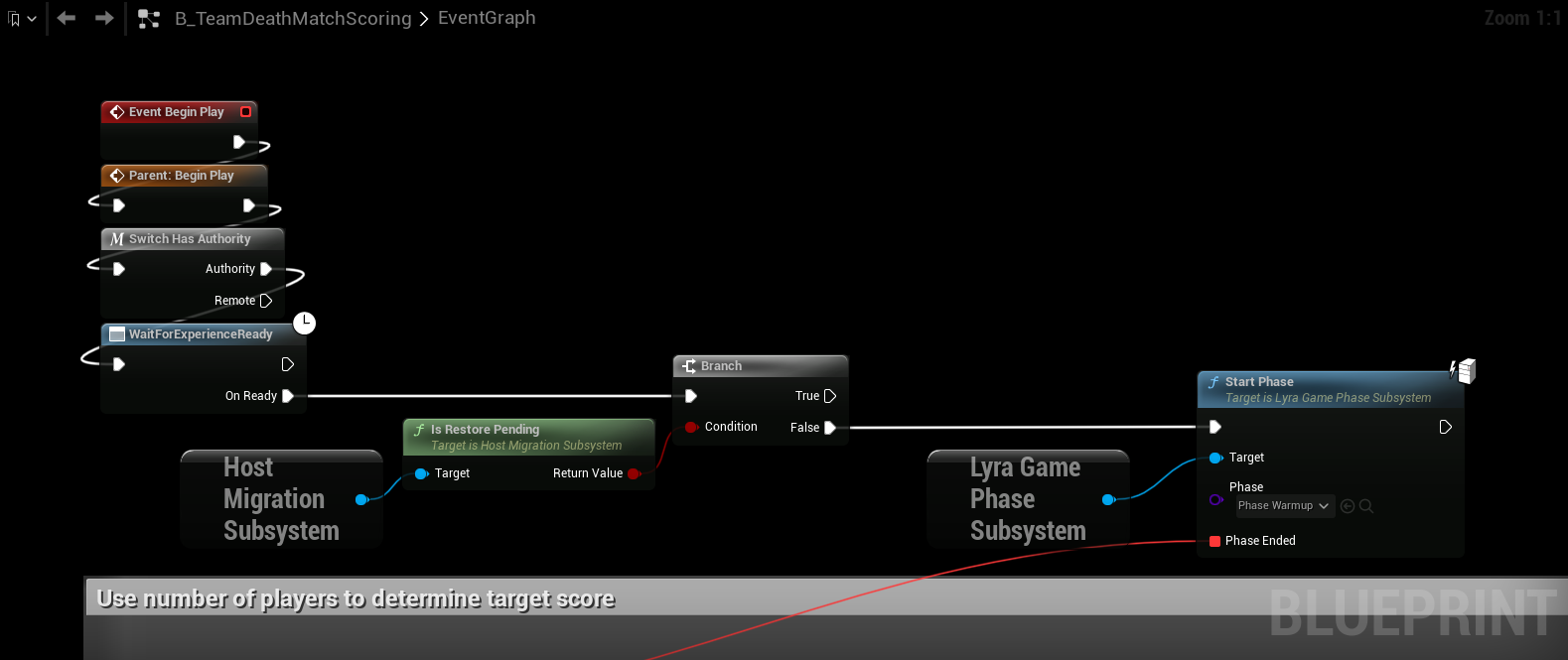
- BeginPlay: after On Ready (Wait For Experience Ready), add a Branch on Is Restore Pending. Connect False to Start Phase (Phase_Warmup). Leave True empty, so the new host starts no warmup.
 5. On Host Migration Restored: add a Branch on
WasPlaying.
- True:
- Set
CountDownTimetoSavedCountDownTime. - Start Phase with Phase_Playing. Leave its Phase Ended pin empty.
- Start the countdown again. Copy Set Timer by Event, its Create Event (CountDown) and SET Timer
Countdown from the end of
GameStarted, and paste them after Start Phase.
- Set
- False: the match was still in warmup. Do the same Start Phase (Phase_Warmup) as BeginPlay, with Phase
Ended bound to
GameStarted.
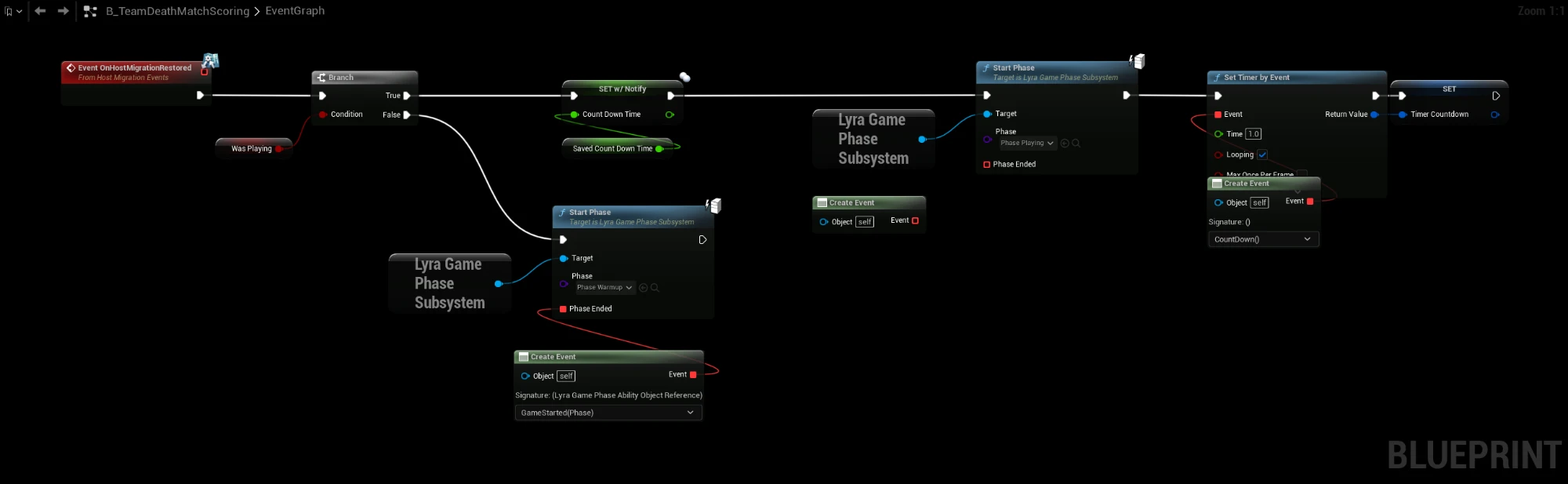
Don't connect GameStarted to Phase Ended of Phase_Playing. That pin fires when the playing phase ends, and
GameStarted would then move all players back to spawn and start a new countdown.
The timer continues from the last snapshot, so it can be up to one Snapshot Interval behind.
Test it
- Start an Elimination match with two players. Wait until the warmup is over and get a few kills.
- Close the host. On the new host there is no warmup, the timer continues where it was, and the scoreboard shows the same teams, kills, deaths and team score.
- Join again with the old host. They are back in their old team with their old stats.