Pause and overlay
Pause
Pause During Grace Period (default on): the new host pauses the game while previous players reconnect, and unpauses when the grace period ends, the migration fails or the host yields.
- Players cannot lift this pause.
- Pauses your game sets itself are not touched.
- If everyone is already back while the map loads, nothing is paused.
Built-in overlay
Show Migration Overlay (default on): a dimmed "reconnecting" screen with the current status on every machine while a migration runs. It lets input through and is added again after every map load. After a failed migration it shows "Could not continue the match" for Failed Overlay Seconds.
Your own overlay
Set Overlay Widget Class to any UMG widget. It is created and removed at the same times as the built-in one.
Bind its text to Get Status Text on the subsystem. It is localized, for example "Waiting for players to return (2 left)". You can also use Get State, Get Num Players Awaited and On State Changed for your own layout.
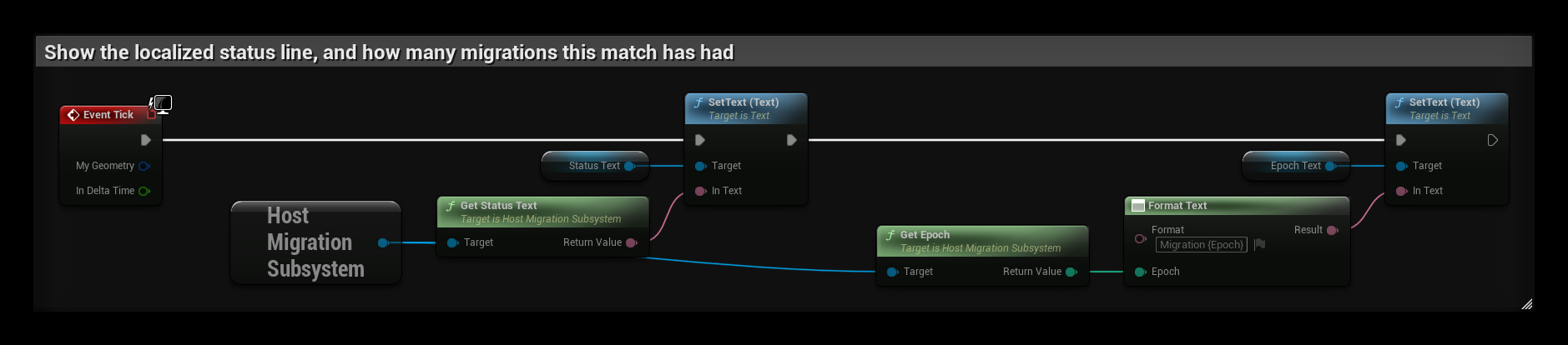
The widget is created again after every map load during a migration. Read the subsystem's state as above, and do not keep your own state in the widget.
To handle everything yourself, turn Show Migration Overlay off and bind On State Changed.
Blueprint example in HostMigrationTest
Open HostMigrationDocs in the Content Browser for two Event Graph examples:
-
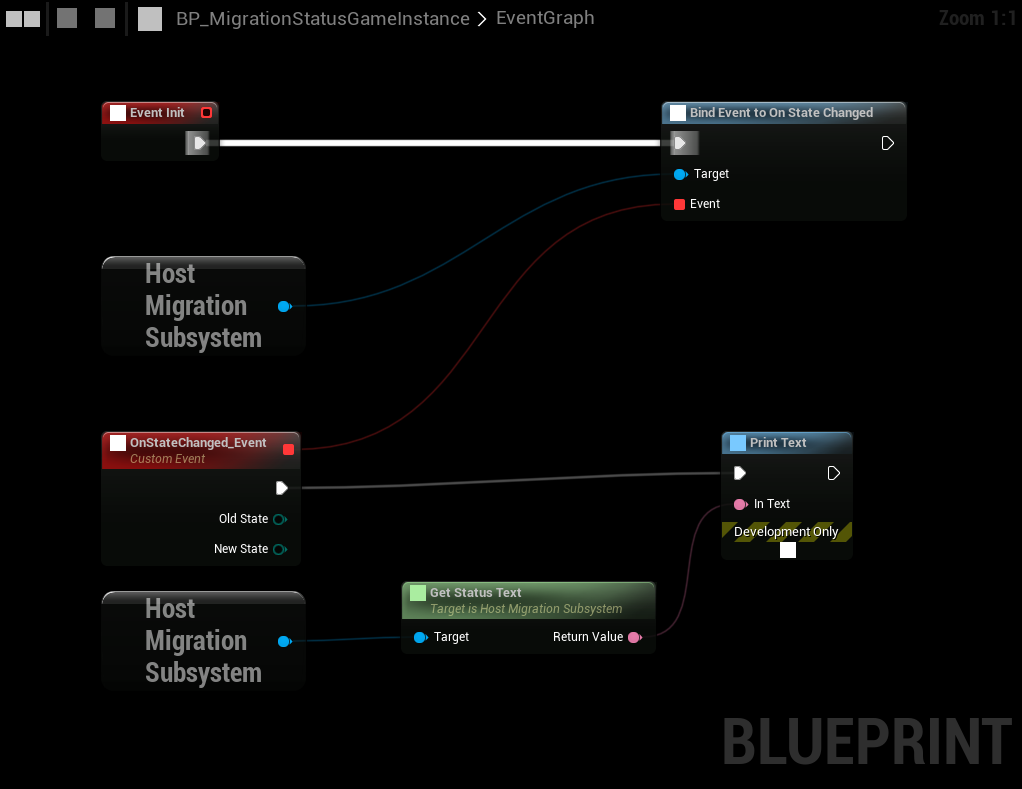
BP_MigrationStatusGameInstance assigns On State Changed in Event Init. The resulting custom event logs Get Status Text on each transition. The binding lives in the GameInstance across map changes.
-
WBP_MigrationStatusExample sets its status label from Get Status Text in Event Construct and refreshes it in Event Tick while on screen. This keeps the text current when the number of players awaited changes within the same migration state. The widget passes mouse input through.
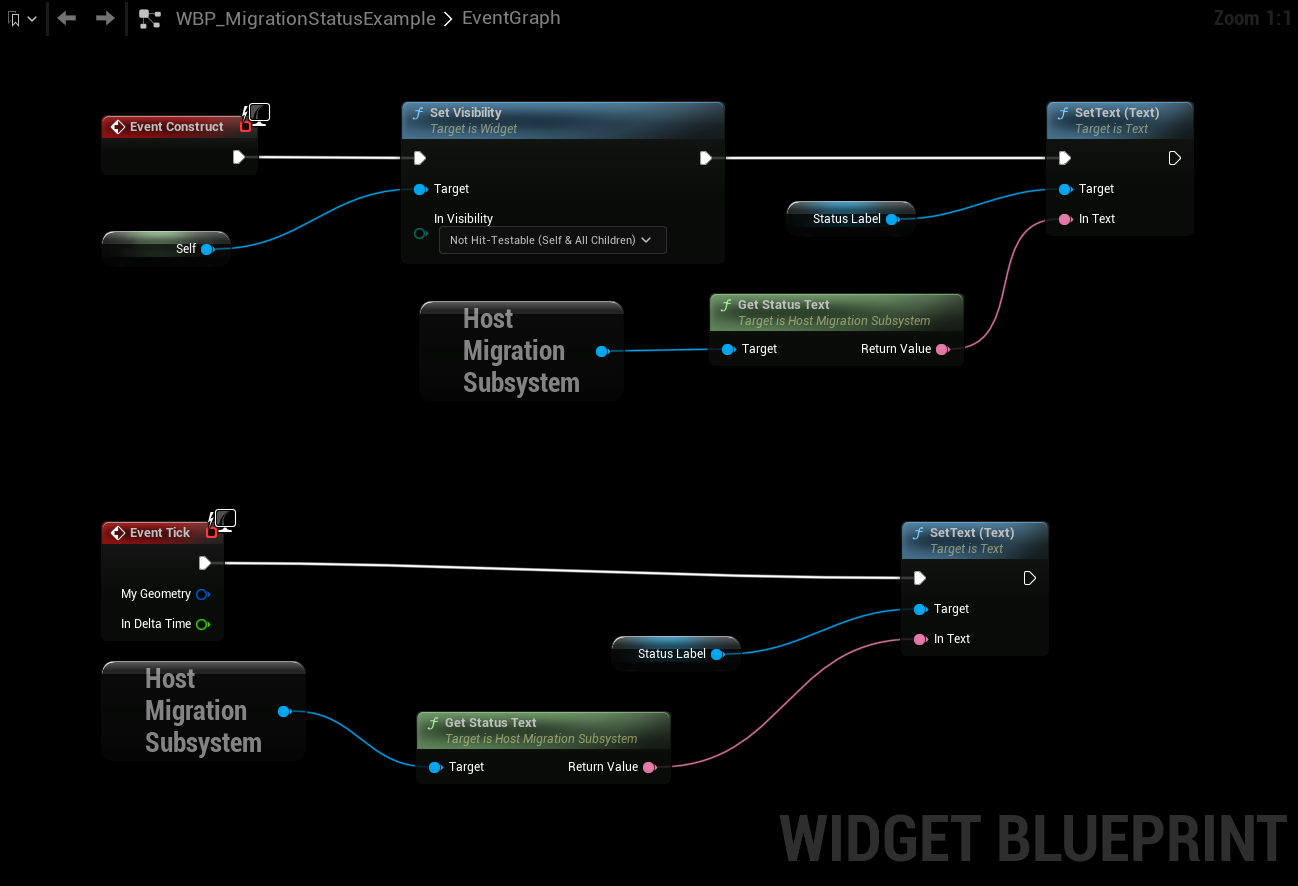
To use the widget, leave Show Migration Overlay enabled and set Overlay Widget Class to WBP_MigrationStatusExample. The plugin adds the widget to the viewport and shows it again after map travel when a migration is still in progress. The status always comes from the subsystem.
For the logging example in a test project, select BP_MigrationStatusGameInstance as the Game Instance Class under Project Settings > Maps & Modes. If your game already has a custom GameInstance, copy the event binding into its existing Event Init graph. The widget can be used on its own.
Test with separate game processes. During a host handover, look for state messages and confirm the overlay appears again after travel while reconnecting and disappears when play resumes.