EOS
Setup
- Set Adapter Class to EOS Adapter. With Adapter Class empty, the plugin picks it by itself when
DefaultPlatformServiceisEOSorEOSCore. - Use an EOS P2P net driver whose addresses are
EOS:<ProductUserId>:...: NetDriverEOS (engine, SocketSubsystemEOS) or NetDriverEOSCore (EOSCore). - Keep every player in an EOS lobby for the whole match. The lobby outlives the host, so it is what the players
use to find each other again. A session created with
bUseLobbiesIfAvailable = trueis a lobby. A plain EOS session (without lobbies) is not enough. - Log every player in with EOS Connect, so they have a Product User Id. The adapter uses the first logged-in Connect user. With several EOS platforms or users in one process (PIE, EOSCore), it uses the platform where the local player's Product User Id is logged in.
[/Script/Engine.GameEngine]
!NetDriverDefinitions=ClearArray
+NetDriverDefinitions=(DefName="GameNetDriver",DriverClassName="/Script/SocketSubsystemEOS.NetDriverEOS",DriverClassNameFallback="/Script/OnlineSubsystemUtils.IpNetDriver")

[/Script/HostMigrationCore.HostMigrationSettings]
AdapterClass=/Script/HostMigrationCoreEOS.HostMigrationAdapter_EOS
With EOSCore
Use NetDriverEOSCore with P2P sockets. HostMigrationCore depends on the engine's EOSShared plugin, which stays enabled next to EOSCore, so tell it that the project ships its own EOS SDK binary:
[OnlineSubsystem]
DefaultPlatformService=EOSCore

[EOSSDK]
bHasProjectBinary=true

[/Script/Engine.GameEngine]
!NetDriverDefinitions=ClearArray
+NetDriverDefinitions=(DefName="GameNetDriver",DriverClassName="/Script/OnlineSubsystemEOSCore.NetDriverEOSCore",DriverClassNameFallback="/Script/OnlineSubsystemUtils.IpNetDriver")

[/Script/OnlineSubsystemEOSCore.NetDriverEOSCore]
bIsUsingP2PSockets=true
Disable the engine's OnlineSubsystemEOS and SocketSubsystemEOS plugins, as EOSCore requires.
The EOS platform
The adapter never creates or ticks an EOS platform itself. It uses the one your EOS layer already runs, found in this order:
| Your EOS layer | What to do |
|---|---|
| OnlineSubsystemEOS (engine) | Nothing. The adapter finds the platform through the engine's EOS SDK manager. |
| EOSCore (1.9.8.9 or later) | Nothing. EOSCore shares its platform through the EOSPlatformHandleProvider modular feature. |
| Your own EOS SDK code | Call UHostMigrationAdapter_EOS::SetPlatformHandle(Platform) before hosting or joining, or register an IEOSPlatformHandleProvider (see EOSPlatformHandleProvider.h). |
The lobby
The adapter detects the lobby by itself. It listens for EOS lobby updates and uses the lobby the local user is a
member of. It also picks up the lobby behind the GameSession of the online subsystem. So it works whichever API
joined the lobby: the Online Subsystem session nodes, EOSCore or the EOS SDK directly.
If players are in more than one lobby (a party lobby and a match lobby), call Set EOS Lobby with the match lobby's id on every machine. Get EOS Lobby returns the lobby in use.
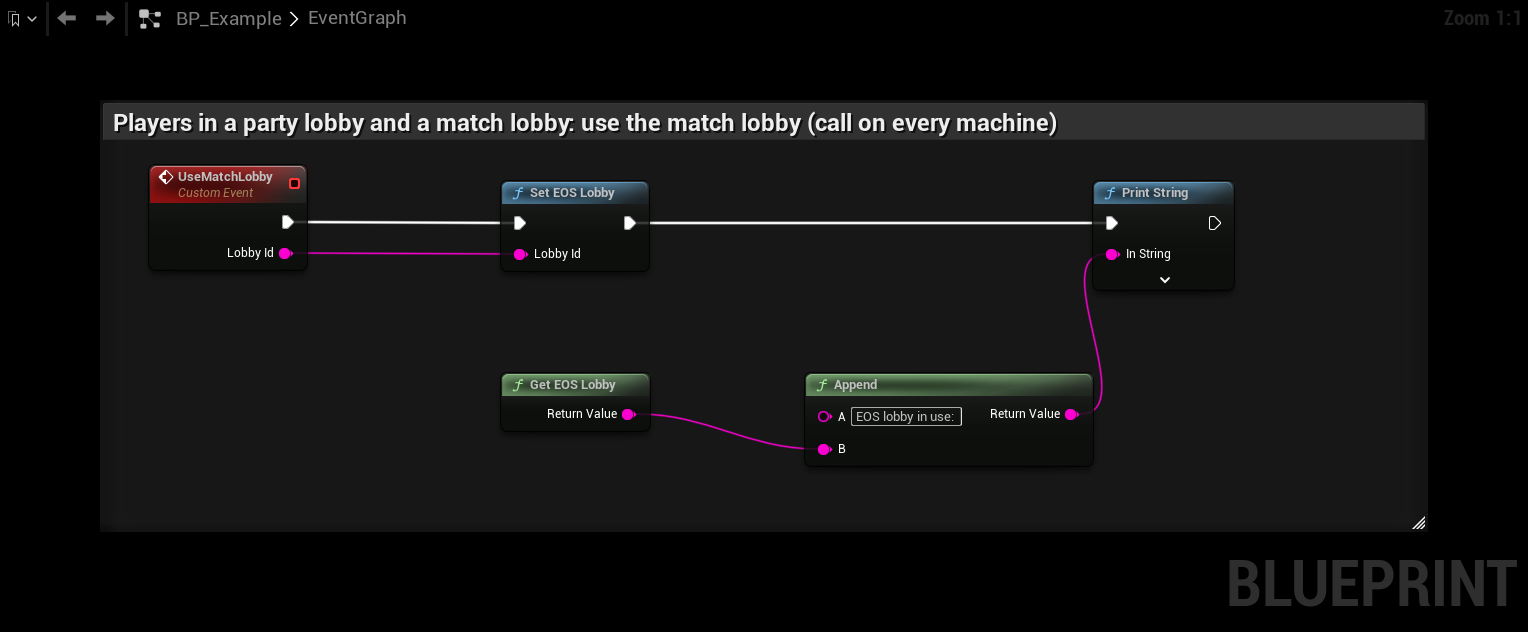
Entering another lobby counts as leaving the match. EOS does not report your own joins and leaves, so the adapter
checks every second that the local player is still in the lobby, and picks up the lobby of your GameSession once it
has left the old one. When the adapter switches to a lobby it detected, nothing from
the old match is announced there, and a host with players hands the old match over first, as with Begin Graceful
Migration. Set EOS Lobby does not do this. If your game moves a running match to a new lobby, call it with the
new lobby's id.
Dropping out of the lobby during a match: the adapter joins the lobby again after 5 seconds, then retries every 10
seconds. It does not rejoin a lobby that came from your GameSession once the GameSession has moved to another lobby.
A lobby the player left outside a match is forgotten.
After Move Party To Host, the players are connected to the new host but still members of the old lobby. The plugin moves the connections, not the lobby membership. If the new host then goes down, the players look for the next host in the old lobby and don't find it. Have every player join the new host's lobby once they have arrived, or call Set EOS Lobby with its id. They are clients of the new host by then, so entering that lobby does not hand anything over.
Don't destroy the session or leave the lobby while a migration runs. If your session plugin does, see Session plugins.
Join Session works after a migration
With lobby sessions, the Online Subsystem connects a joining player to the lobby owner. The adapter keeps the current host as lobby owner: whoever owns the lobby promotes the current host. This takes a second or two after a migration.
This is Manage Lobby Ownership (on by default). Turn it off if your game uses the lobby owner for something of its own. Then players who join later do not find the new host through Join Session. Use Find Host In Lobby instead.
So players coming back, or joining late, can use the usual Find Sessions and Join Session nodes.
What the adapter does
| Question | Answer from EOS |
|---|---|
| Is a player still in the session? | Lobby membership. |
| Where is the host? | The host's own lobby member attributes: hm_addr, hm_epoch, hm_players, hm_id. |
| Is the host still running? | hm_beat, updated every Heartbeat Interval (5 s) while hosting. |
| Is the successor still loading? | hm_loading, set while the successor loads the map. |
| What is my address? | The net driver's address, or EOS:<my ProductUserId>. |
Member attributes of a player who left disappear with them, so only live hosts are listed.
Attribute writes are merged and sent as one lobby update at a time. When EOS answers too many requests, the adapter waits and tries again, so a busy lobby does not lose announcements.
After a migration
On Host Changed fires on every machine with the new host's id and address. On the new host, use it to update things that point at the old host, such as lobby attributes your matchmaking reads.
Players who are not connected yet can use Join Session (see above), or call Find Host In Lobby to get the current host's address.
Map changes
Seamless travel is recommended on EOS. The connections stay open and nothing special happens.
With non-seamless ServerTravel, the host closes its EOS socket when it loads the new map, which drops clients that
already started connecting to it. The plugin handles this: when a client cannot follow the host to the new map and the
host is still in the lobby, it rejoins the host (state RejoiningHost) after Reconnect Retry Delay. Clients sit in
the wait map for a few seconds before they reach the new map. This needs Rejoin Timeout above 0 (default 20 s).
Crash timing
After a host crash, clients first try to rejoin it while EOS still lists it in the lobby. EOS reports the crashed
host as gone about 30 seconds after the crash, but clients migrate earlier when the host's hm_beat has not changed
for Heartbeat Timeout (15 s). A crash still takes longer than a graceful leave.
A game that quits should leave the lobby before it shuts down (EOS_Lobby_LeaveLobby). Otherwise EOS keeps it in the
lobby as if it had crashed.
Over the internet, give the successor a bit more time to load and announce itself:
[/Script/HostMigrationCore.HostMigrationSettings]
CandidateTimeout=15.0
ReconnectGracePeriod=30.0
The net driver's own timeouts decide how fast a lost connection is noticed:
[/Script/SocketSubsystemEOS.NetDriverEOS]
ConnectionTimeout=10.0
InitialConnectTimeout=25.0
With EOSCore, set the same keys under [/Script/OnlineSubsystemEOSCore.NetDriverEOSCore].
Testing on one machine
Use the Developer Authentication Tool from the EOS SDK, with one credential per instance:
UnrealEditor.exe MyProject.uproject -game -AUTH_TYPE=developer -AUTH_LOGIN=localhost:1111 -AUTH_PASSWORD=<credential name>
Start the host, create the lobby and open the map as listen server, then start the clients with their own credentials and join the lobby. Close or kill the host to see the migration.